Getting Started
Which Mac do I have?
MIXPrep ships as two separate Mac builds. Pick the one that matches your chip.
- Click the Apple menu in the top-left corner of your screen.
- Choose About This Mac.
- Look for the line that says either "Apple M1" / "M2" / "M3" / "M4" (Apple Silicon) or "Intel Core i5" / "i7" / "i9" / "Xeon" (Intel).
If you're not sure, use the toggle at the top of this guide to switch the instructions to your chip.
Install MIXPrep on Apple Silicon
- Download the Apple Silicon DMG from mixprep-proxy.vercel.app/api/download?platform=mac&arch=arm64.
- Double-click the DMG to mount it.
- Drag MIXPrep.app into your Applications folder.
- Eject the DMG (drag it to the trash) and open MIXPrep from Applications.
MIXPrep is signed with our Apple Developer ID and notarized by Apple, with the notarization ticket stapled onto the .app starting in v1.4.4. That means Gatekeeper trusts the app even on Macs that can't reach Apple's notarization servers (corporate firewalls, restrictive ISPs, first launch on a fresh machine).
Install MIXPrep on Intel
The Intel build is a separate x86_64 DMG. It's smaller than the Apple Silicon build because some local audio analysis libraries don't ship for Intel.
- Download the Intel DMG from mixprep-proxy.vercel.app/api/download?platform=mac&arch=x86_64.
- Double-click the DMG to mount it.
- Drag MIXPrep.app into your Applications folder.
- Eject the DMG and open MIXPrep from Applications.
The Intel build (v1.4.4-Intel and onward) is signed, notarized, and stapled the same way the Apple Silicon build is. macOS Sonoma 14.0 or later is required.
If macOS still warns you on first launch
v1.4.4 stapled notarization should make this rare. If you do see "Apple could not verify MIXPrep" or similar:
- Click Done (NOT "Move to Trash").
- Open System Settings > Privacy & Security and scroll to the bottom.
- Click Open Anyway on the MIXPrep line and confirm with your password.
Faster alternative: right-click MIXPrep.app in Applications, choose Open, then click Open again on the dialog. Once you've done this once, macOS trusts the app from then on.
Install MIXPrep on Windows
MIXPrep for Windows ships in three flavors. Pick the one that fits how you work.
Recommended: Installer
- Download MIXPrep_Setup.exe from mixprep-proxy.vercel.app/api/download?platform=windows&variant=installer.
- Double-click the installer. If Windows SmartScreen shows a blue warning, click More info, then Run anyway.
- The installer creates a Start Menu entry and a desktop shortcut. Launch from either.
Alternative: Portable
- Download MIXPrep_windows.zip from mixprep-proxy.vercel.app/api/download?platform=windows&variant=portable.
- Right-click the ZIP and choose Extract All. Pick a destination you'll remember (a folder under your user profile is fine).
- Open the extracted folder and double-click MIXPrep.exe.
For diagnosing crashes: Debug build
If you ever hit a crash, the debug variant at ?variant=debug writes a verbose log to stderr. Support will ask for this if it's needed.
Drop a session folder
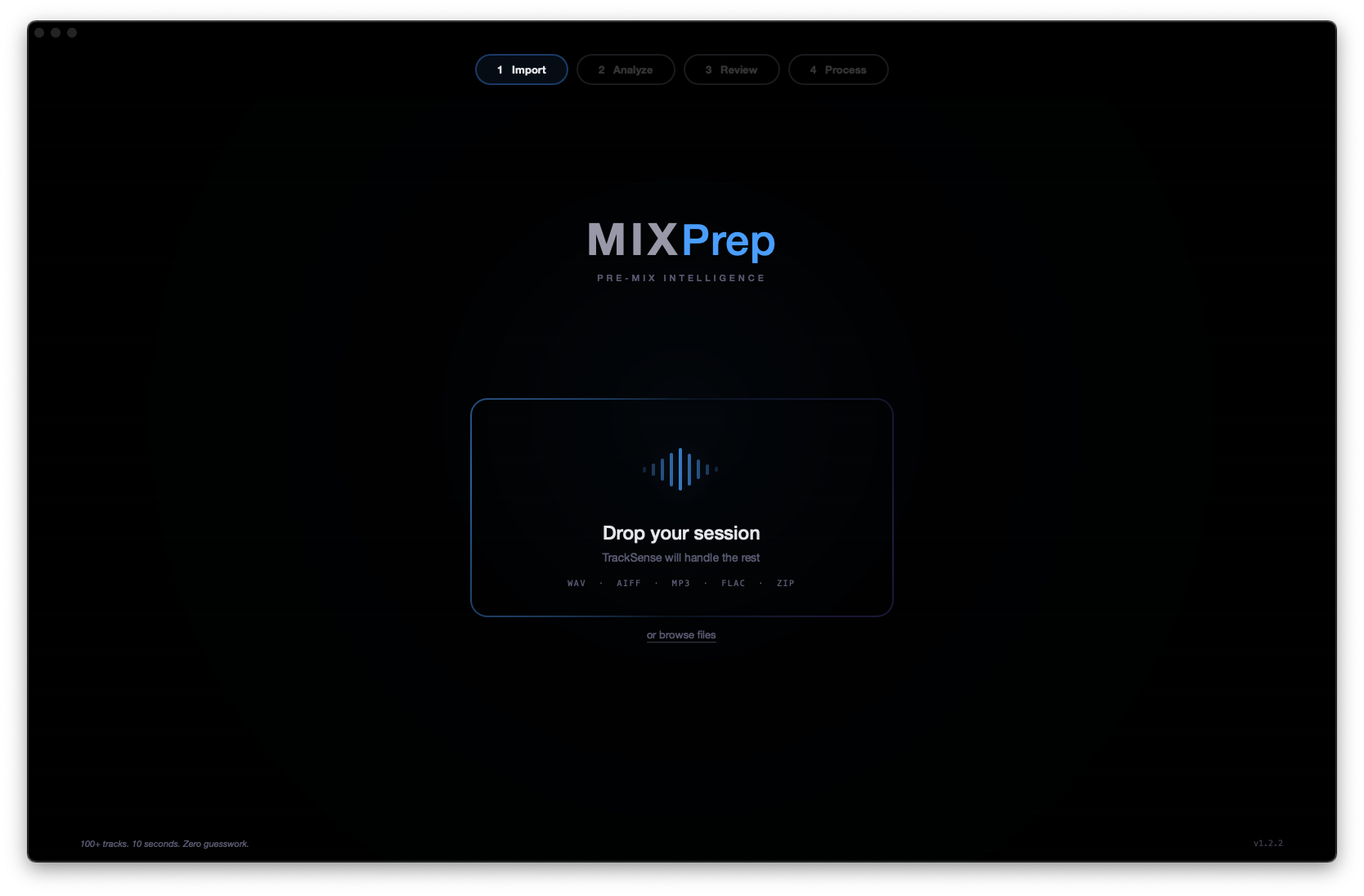
Launch MIXPrep and drag your session folder directly onto the app window, or click the drop zone to browse. MIXPrep scans for audio files (WAV, AIFF, FLAC, MP3), MIDI files, session documents, and rough mixes automatically.
First-run setup
On first launch, MIXPrep walks you through a quick setup wizard:
- Activate your license (see Activation below).
- Pick your default gain target and mode. SMART Gain is the recommended default.
Activation Rewritten for v1.4.4
v1.4.4 gives you three ways to activate MIXPrep. They all end at the same place: a license stored locally on this device, validated against your purchase. Pick whichever matches the situation.
Path A: Sign-in link, then paste the key (recommended)
- Open Settings > Activate in MIXPrep.
- In the Send sign-in link field, type the email address you used at checkout. Click Send link to my email.
- Open your email. Click the one-time sign-in link.
- Your browser opens a page showing your activation key (looks like
mp-ai-XXXX-XXXX-XXXX-XXXX). Copy it. - Paste the key into the Paste license key field in MIXPrep. Click Activate this device.
- You'll see "Activated as Core" (or AI, depending on your tier). Restart MIXPrep when prompted.
Path B: Paste a key you already have
If you've already gotten your activation key from a prior sign-in link, you can skip straight to step 5 above. Paste it into Paste license key, click Activate this device, restart.
Path C: Paste an offline activation token (new in v1.4.4)
If your studio's network is blocking mixprep-proxy.vercel.app (some corporate firewalls and restrictive ISPs do), or if Path A is just spinning, email support@themixacademy.com and ask for an offline activation token. You'll get back a longer string that starts with something like eyJ2IjoxLCJhbGc….
- Open Settings > Activate.
- Paste the full token string into the Paste activation token field (the second card, below the license-key card).
- Click Activate offline. MIXPrep verifies the signature locally without making any network call.
- You're in. The next time MIXPrep can reach the internet, it quietly upgrades your offline token to a normal device-bound one in the background. You don't have to do anything.
mp-core-XXXX-XXXX-XXXX-XXXX and is the one we want you to use on a normal internet connection. An activation token is much longer (a JWS string) and is for the situations where the key flow can't talk to our server. They unlock the same tiers. Don't paste a key into the token field or vice versa.Tiers
- Free – full app, 16-track limit per session, SMART Gain, MixPrint included.
- Core ($97) – unlimited tracks, all core features, free updates.
- AI / Founding – everything in Core plus MIXRef, SonicLens, and MixBrief. The AI order bump is $49/year on top of Core.
Devices and the 3-device limit
One license can activate up to three devices. If you try to activate a fourth, MIXPrep shows you the three currently-active devices with a Remove from this device button on each. Free up a seat, then come back and activate the new machine.
Migration grace (v1.4.2 → v1.4.3/v1.4.4 upgraders)
If you upgrade to v1.4.3 or v1.4.4 from an older v1.4.2 install, you get a seven-day grace window where the app trusts your old activation while you finish setting up the new key flow. After that, you'll need to complete one of the activation paths above. There's a hard deadline of 2026-08-19, after which all migration grace expires regardless of when it started. Activate before then and you're set.
Platforms & Architectures New
MIXPrep ships in three flavors. Same activation, same processing pipeline, but a few differences in what's bundled and how local audio analysis works.
| Mac, Apple Silicon | Mac, Intel | Windows (beta) | |
|---|---|---|---|
| Latest build | v1.4.4 (universal arm64) | v1.4.4-Intel (x86_64 thin) | v1.4.1.2 (x86_64 installer + portable) |
| Minimum OS | macOS 14.0 Sonoma | macOS 14.0 Sonoma | Windows 10 (1909+) or Windows 11 |
| Install size | ~700 MB (universal2) | ~140 MB DMG / ~360 MB installed | ~340 MB |
| Local tempo/key engine | Essentia (full accuracy) | librosa fallback | librosa fallback |
| MIXRef / SonicLens / MixBrief | Full (cloud-routed) | Full (cloud-routed) | Full (cloud-routed) |
| Signed & notarized | Yes (Apple Developer ID, stapled) | Yes (Apple Developer ID, stapled) | SmartScreen reputation in progress |
| Auto-update | Architecture-aware (arm64 only) | Architecture-aware (Intel only) | Variant-aware (installer / portable / debug) |
| Settings location | ~/.mixprep/ |
~/.mixprep/ |
%USERPROFILE%\.mixprep\ |
Why two Mac builds?
Some of the audio-analysis libraries MIXPrep uses don't have native Intel wheels anymore. Rather than ship one slow, fragile universal binary, we split the build. Apple Silicon gets the full local audio brain. Intel gets the lighter build with the same UI and the same activation, and falls back to librosa for tempo and key. AI features (MIXRef, SonicLens, MixBrief) are cloud-routed and identical on every build.
What "Not detected" means on Intel
If MIXPrep can't lock onto a tempo or key on Intel, you'll see "Not detected" more often than on Apple Silicon, particularly on pad-heavy or free-time material. This isn't a bug. The folder-hint and manual override paths in Tempo & Key Override still work normally.
The Review Card
After MIXPrep scans your session, the top of the Review page shows a hero card that reads the session for you and tells you what to do next. Status icon on the left, plain-English headline, four stat tiles for the session essentials, and the gain mode pills right where your eye lands.
What the card tells you
- Status icon and headline. Adapts as you work. "Review your session" when there's nothing to flag. A warning state when categories are missing or stems look off. "Processing" while exporting. "Done" when the run completes.
- Tracks. Total file count.
- Stereo / Mono. Split count. Tells you instantly whether anything got bounced to the wrong type.
- Tempo. Session BPM. Click the tile to override (see Tempo & Key Override).
- Key. Detected session key.
- Gain mode pills. SMART, Peak, RMS, or a MixPrint preset. Switch modes right from the card.
Coach-tone subhead
Below the headline, the card gives you a short subhead in plain English. If two tracks aren't categorized, it'll tell you. If SMART Gain isn't going to behave the way you expect on a particular session, it'll say so. The subhead is the one place where the app speaks like a person walking you through it, not a piece of software.
The Table
Track list overview
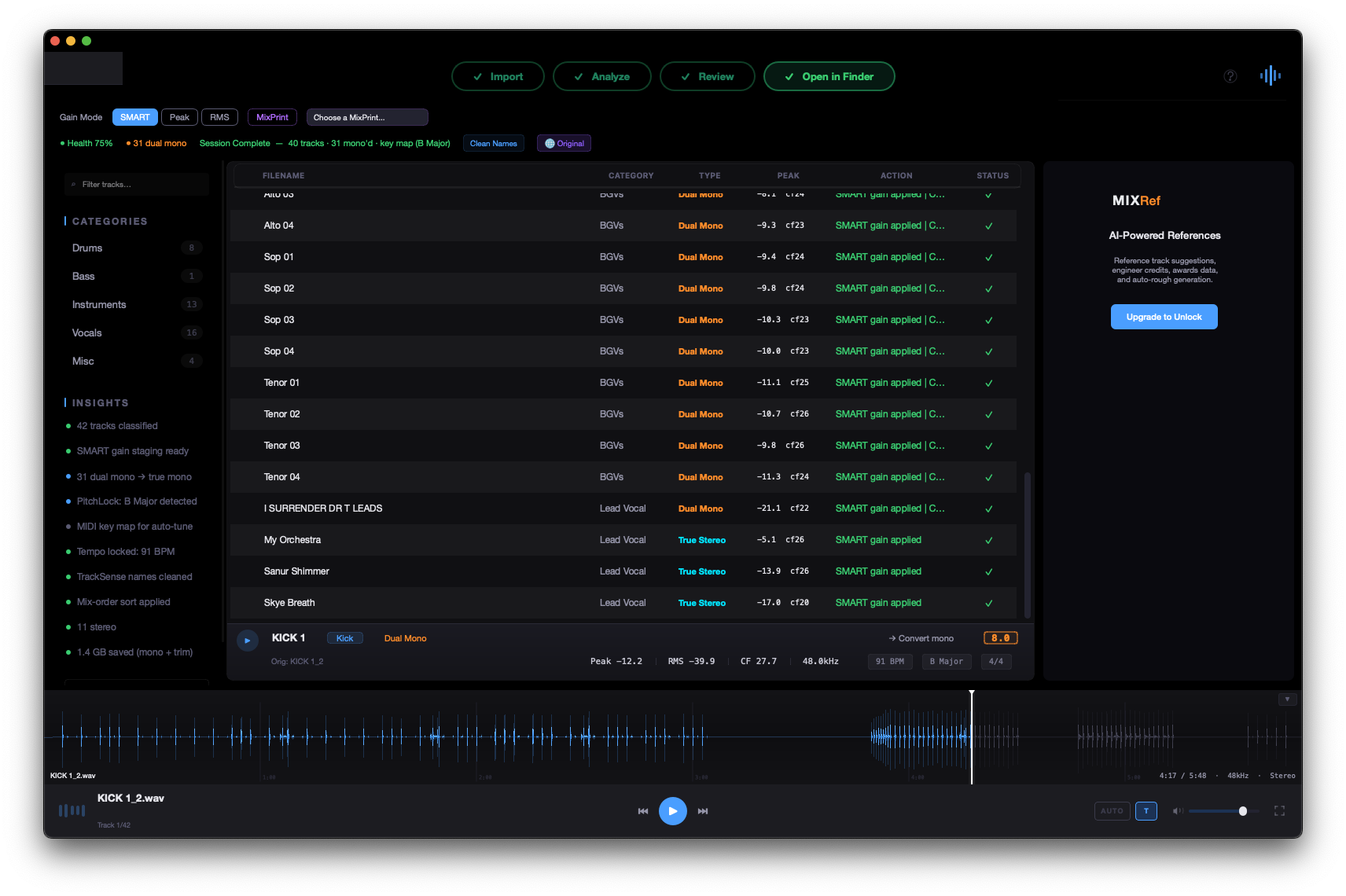
After scanning, MIXPrep displays all your tracks in the main table. Each row shows the track name, auto-detected category (Kick, Snare, Vocal, and so on), stereo type analysis, and audio statistics.
Categories
TrackSense auto-categorizes every track using smart keyword matching and AI classification across 37 categories. Works on sessions with 100–200+ tracks in seconds. Categories include Kick, Snare, HiHat, Toms, Overheads, Room, Bass, Guitar, Keys, Synth, Vocal, BGV, FX, and more. Right-click any track to change its category manually.
Play and preview
Click any track to select it. Press Space to play or pause. Use the left and right arrow keys to seek five seconds. Enable auto-preview to automatically play each track as you navigate with the arrow keys.
Rename tracks
Press the ' (apostrophe) key or right-click and select Rename to edit a track name inline. Press Enter to confirm or Esc to cancel.
Reorder tracks
Each audio row shows its order number on the left edge. Hover the row to swap the number for a six-dot drag handle, then drag the row up or down. You can also use the right-click menu to move tracks. MIXPrep respects your custom order when exporting.
Restore original filename (NameRecall)
Press ⌘+LCtrl+L on any track to restore the full original filename. Useful if Clean Names stripped a suffix you actually wanted to keep, or if you renamed a track and want to revert.
The ACTION Column
The right side of each row in the table has an ACTION column that paints two pills: one for the stereo handling and one for the gain MIXPrep is about to apply. Reading the ACTION column tells you, at a glance, what's going to happen when you hit Process.
Stereo pill
- Keep stereo. The track is real stereo and will export as-is.
- Already mono. The track is mono and stays mono.
- Dual mono → mono. The track is dual mono (L and R identical or near-identical) and will be folded down to a single mono file.
- PROTECTED · gain staged. The track is in a stereo group that MIXPrep won't touch independently (overheads, room pairs, drum subgroups). Gain is staged at the group level to preserve imaging.
Gain pill (right side)
What this pill shows depends on the gain mode you've selected on the Review Card:
- SMART. The pill says only "Smart". The per-row gain delta is intentionally hidden because SMART Gain is the category-aware engine that took years to tune, and exposing every per-row number gives away how it works. The pill is your confirmation that SMART is making a category-aware call on that row. The result lands when you Process.
- Peak. Shows the target, like "Peak -18". Every track lands at the target you picked.
- RMS. Shows "RMS -18" (or your chosen target).
- MixPrint. Shows the actual gain delta computed from the MixPrint preset, so you can sanity-check what the saved balance is asking for.
TrackSense
Auto-categorization
TrackSense auto-categorizes every track using smart keyword matching across 37 categories. Works on sessions with 100–200+ tracks in seconds. Categories include Kick, Snare, HiHat, Toms, Overheads, Room, Bass, Guitar, Keys, Synth, Vocal, BGV, FX, and more.
BGV detection
TrackSense matches bare vocal part names for BGV categorization: Alto, Soprano (and Sop), Tenor, and Baritone are all recognized as BGVs without needing a "BGV" prefix. This handles choir and ensemble sessions where tracks are labeled by vocal part only.
Teachable dictionary
When you manually change a track's category, MIXPrep learns the keyword association. For example, if you assign a track named "Rhodes_01" to Keys, MIXPrep will automatically categorize any future track containing "Rhodes" as Keys. Manage learned keywords in Settings.
Multi-language support
TrackSense recognizes 170+ audio terms in 15+ languages, so sessions from international studios are categorized correctly out of the box.
Confidence dots
Each row in the table shows three small dots next to the category, encoding how confident TrackSense is in its read:
- Three green dots. 85% confidence or higher. Strong match across keyword, AI, and context signals.
- Amber dots. 60 to 85% confidence. Reasonable match, but the track name was ambiguous or short.
- Red dots. Under 60% confidence. The row is worth a glance.
Hover the dots to see the source (keyword, AI, or teachable dictionary), the runner-up category, and any disagreement between signals. A question-mark icon next to the category means two signals disagreed. Click it to see both.
Clean Names
Automatic filename cleanup
MIXPrep cleans up messy track names during export using unified rules. The table display shows cleaned names without the .wav extension so you can review before processing.
What gets cleaned
- Session-wide numbered suffixes. If every track in the session ends with _01 or similar _\d+ suffixes, MIXPrep strips them automatically. Single occurrences are left alone.
- Channel suffixes. .L and .R suffixes are removed.
- Version tags. v1, v2, and similar version suffixes are stripped.
- Processing tags. _comp and similar processing markers are removed.
- D.I. normalization. "D.I." is cleaned to "DI" for consistent naming.
Gain Staging
SMART Gain (default)
SMART Gain (Session-Matched Adaptive Ratio Targeting) is the default gain mode. It adjusts each track's level based on its category: kicks and bass get more headroom for transient preservation, vocals are brought forward, BGVs are balanced relative to lead vocal count, and FX tracks are pulled back. The result is a balanced starting point that saves time at the fader stage.
Gain mode selector

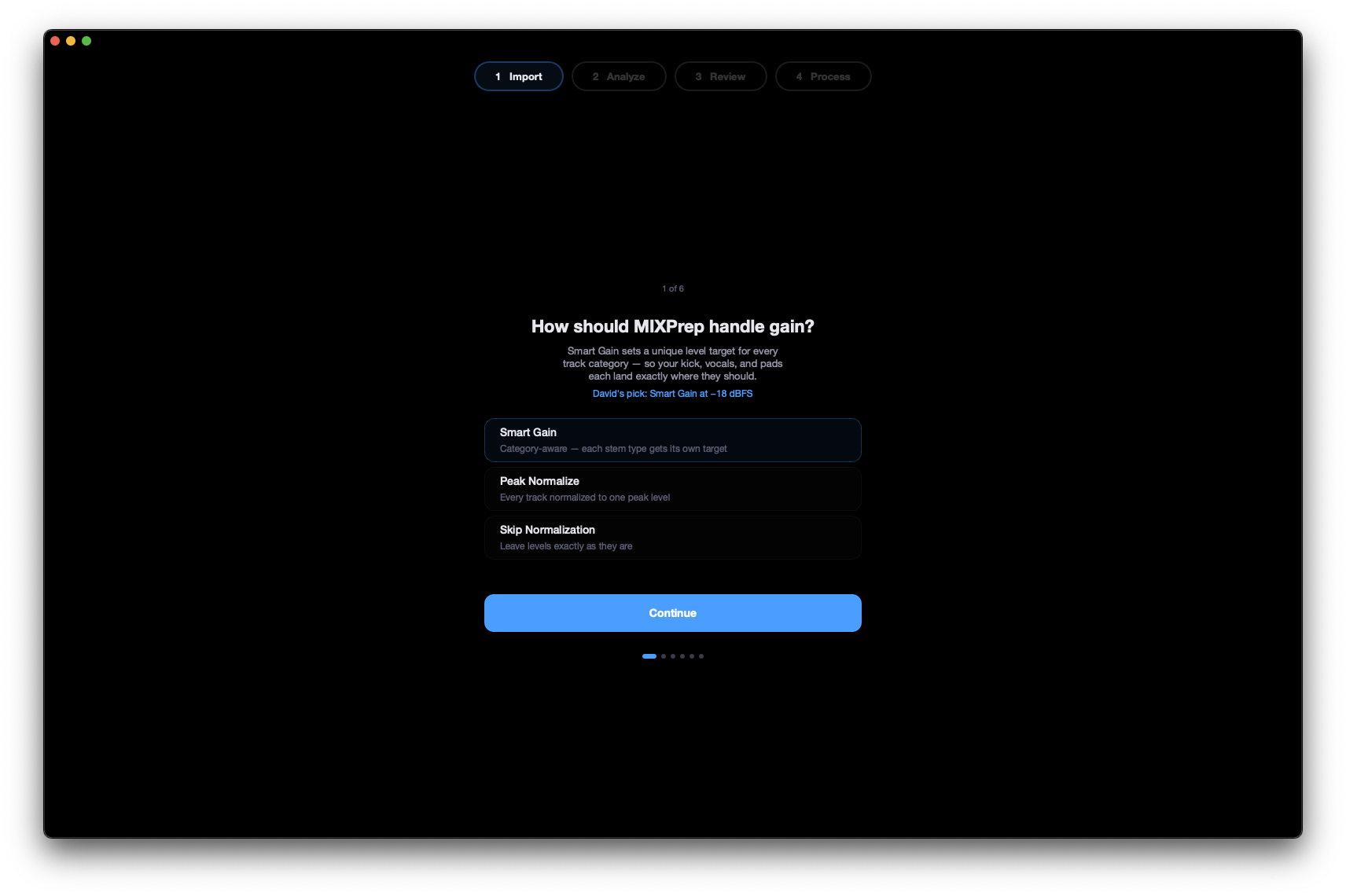
The Review page includes a gain mode dropdown with four options:
- SMART. Category-aware gain staging (recommended).
- Peak. Normalize to a peak target level.
- RMS. Normalize to an RMS target level.
- MixPrint. Apply gain from a saved MixPrint balance preset.
Changing the gain mode updates the table with live previews of the new gain values. The gain mode selector on the Review page and the one in the Settings panel stay in sync. Changing either one updates both.
Tempo & Key Override
Auto-detection is good but it isn't perfect. Some sessions have a tempo that audio analysis can't lock onto: half-time grooves, ballads, free-time intros, or any track where the producer printed everything to a click that's off. MIXPrep makes the override one tap.
Overriding the tempo
The BPM tile on the Review Card is always clickable (your cursor changes to a pointing hand). Tap it and a small menu appears with four options:
- Keep detected. Trust the audio analysis. Default.
- Reset to detected. If you've already overridden once, this reverts to the original detection.
- Use folder hint. If your session folder name contains a BPM (like
Worship Set 132bpmorBattle Belongs - 78 BPM), MIXPrep parses it and offers that as a one-click choice. - Type manually. Enter any BPM. Useful when you know what the song is supposed to be.
Tempo conflict warning
When the detected tempo and a folder hint disagree by more than a few BPM, the tile flips to an amber warning state with a "Tap to verify" CTA. This is MIXPrep telling you: "I'm not confident in this one, eyeball it before you trust it."
How the override propagates
Once you set a tempo, every downstream feature reads it at call time: the MIDI export, the MixBrief report, the MIXRef BPM filter, and the session card display. You don't have to re-trigger anything. The session card updates instantly.
078 Battle Belongs or SetA_132bpm work. Ambiguous patterns are skipped.MixPrint
What is MixPrint?
MixPrint is balance fingerprinting for finished mixes. Scan a completed mix you love, and MIXPrep captures its balance profile (the relative levels of every stem category using LUFS, spectral analysis, and crest factor). Save the profile as a preset and apply it to new sessions to start from a proven balance.
Creating a MixPrint
- Drop a folder containing a finished mix (consolidated stems) onto MIXPrep.
- MIXPrep detects it as a Pro Tools session and asks: Prepare for Mixing or Create a MixPrint.
- Choose Create a MixPrint. MIXPrep consolidates, analyzes, and scans every track.
- A progress overlay shows per-track updates as the scan runs.
- Name and save the preset. It appears in your MixPrint library.
Applying a MixPrint
On the Review page, select a MixPrint preset from the gain mode dropdown. The dropdown lists all saved presets alongside the standard gain modes (SMART, Peak, RMS). MIXPrep maps each track's category to the corresponding level from the fingerprint and shows the result in the table.
Where presets are stored
On macOS: ~/.mixprep/mix_balances/.On Windows: %USERPROFILE%\.mixprep\mix_balances\. Each preset is a JSON file containing the per-category balance profile.
MIXRef
What is MIXRef?
MIXRef is your reference track intelligence system. It analyzes your session context (genre, instrumentation, key, tempo) and suggests professional reference tracks that match your mix.
Intake questionnaire
When you first open MIXRef, it walks you through a quick intake: genre feel, target vibe, and any specific references you already have in mind. A "What to avoid" multi-select lets you flag things like overly compressed, too much reverb, harsh highs, or muddy midrange, so MIXRef knows what to steer away from.
SonicLens, A/B reference listening
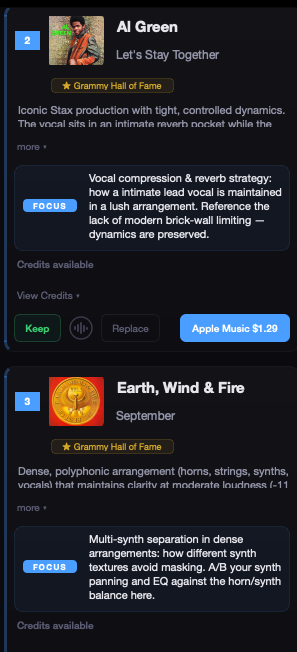
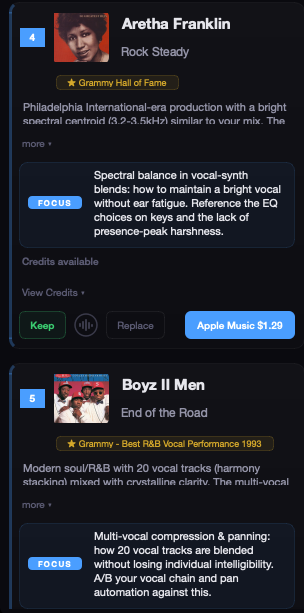
After the genre and vibe questions, SonicLens presents two reference cards side by side with 30-second Apple Music previews. Listen to both and pick the mix that's closer to your vision. 80 hand-curated tracks across 10 genres, and your choice feeds the AI as the highest-signal data point for recommendation quality.
Smart skip
Don't know the answer to a question? Skip it. MIXRef submits whatever you've answered so far. Partial answers are submitted intelligently with a "Got it" confirmation, so nothing is lost.
Prep screen
After the intake, a brief prep screen (5–10 seconds depending on session size) appears with a gentle fade-out transition while MIXRef processes your answers and builds recommendations.
Reference search
Search for reference tracks by song title, artist, or genre. MIXRef pulls results from Apple Music and shows album art, BPM, key, and engineer credits when available via MusicBrainz.
Keep, replace, and compare
For each suggested reference, you can Keep it in your reference list, Replace it with another suggestion, or compare it side by side with your session tracks.
MixBrief: Musical Intelligence Report
The intelligence report
MixBrief analyzes your entire session and generates a musical intelligence report: emotional read, mix priorities, watch items, and suggested approach. Covers tempo, key, time signature, audio quality alerts, and actionable mix direction.
Session priorities
Based on the analysis, MIXPrep surfaces the most important things to address before mixing: tracks with clipping, files with unusual sample rates, stereo issues, suspected sub bleed, and more.
Key and tempo detection
MIXPrep detects session tempo and key using audio analysis. It also scans for key changes throughout the session. Click the key display in the session card to see the full breakdown. If the detected tempo looks wrong, the BPM tile on the Review Card is clickable. See Tempo & Key Override.
Sample Rate Confirmation Gate New in v1.4.4
Before MIXPrep processes a session, it now confirms with you whenever the target sample rate in Settings would actually resample your files. This was added in v1.4.4 after a dogfood catch where a target of 48 kHz was silently converting 44.1 kHz files because the customer thought "Match Source" was on.
When the gate fires
- If your target sample rate in Settings is anything other than "Match Source" AND
- at least one file in the session has a rate that doesn't match the target,
MIXPrep shows a confirmation dialog before processing. It lists the target rate and a per-source-rate breakdown (for example, "44.1 kHz: 5 files, 16 kHz: 2 files"). Cancel is the default button because, in our experience, the silent resample is almost always not what the customer wanted.
What to do
- If you do want to resample, click Confirm. MIXPrep proceeds with the conversion.
- If you don't, click Cancel. Open Settings > General and change Target sample rate to Match Source. Then Process again.
Where to set the target
Settings > General > Target sample rate. Options: Match Source (default), 44.1 kHz, 48 kHz, 88.2 kHz, 96 kHz, 176.4 kHz, 192 kHz.
Processing
Export modes
MIXPrep offers two export modes:
- Ordered Copy. Creates a new folder with tracks numbered in your custom order. Original files are untouched.
- In-Place. Modifies files in the original session folder. A backup is created automatically before any changes.
Output folder structure
When using Ordered Copy, MIXPrep organizes your export into subfolders:
- Audio/. Processed audio files, numbered in your custom track order.
- MIDI/. Exported MIDI files with session tempo, key, and time signature.
- Reports/. Session intelligence reports and any generated documents.
MIDI export
MIXPrep exports Type 0 MIDI files containing tempo, key, and time signature metadata detected from your session. Files use ASCII text encoding and default to 4/4 when no time signature is detected. Fully compatible with Pro Tools and other major DAWs.
Backup
When using in-place processing, MIXPrep creates a timestamped backup folder before modifying any files. You can find backups in a _MIXPrep_Backup subfolder inside your session directory.
Settings
Settings panel layout
The Settings panel is organized into four tabs:
- General. Gain target and mode, target sample rate, trim silence, audio output device, Sentry opt-in.
- Track Order. DG Default or custom category ordering. Drag to reorder.
- MixPrint & D.I. MixPrint preset management and Direct Inject (Pro Tools / Reaper) template settings.
- Activate. License activation. Two cards: Paste license key (online) and Paste activation token (offline). A third card sends the magic-link sign-in email if you've lost your key.
Settings sync
Settings stay in sync across the app. Changing the gain mode in the Settings panel updates the Review page dropdown, and vice versa. All settings persist across sessions and app restarts.
Keyboard Shortcuts
| macOS | Windows | Action |
|---|---|---|
| Space | Space | Play / Pause |
| ↑ / ↓ | ↑ / ↓ | Navigate tracks |
| ← / → | ← / → | Seek 5 seconds |
| Shift+→ | Shift+→ | Jump to next transient |
| ⌘+1 / 2 / 3 | Ctrl+1 / 2 / 3 | Focus panel |
| Tab | Tab | Cycle panels |
| A | A | Toggle auto-preview |
| T | T | Toggle transient seek |
| E | E | Expand waveform |
| S | S | Show silence regions |
| ' | ' | Rename track |
| ⌘+L | Ctrl+L | NameRecall, restore original filename |
| Esc | Esc | Exit fullscreen |
| ⌘+Z | Ctrl+Z | Undo |
| ⌘+Shift+Z | Ctrl+Shift+Z | Redo |
Award Badges
What are award badges?
When MIXRef suggests a reference track that won or was nominated for a major award, a gold badge appears on the reference card. Badges are shown for Grammy, Dove, BET, Billboard, and Stellar awards.
How badges appear
- Badges display as gold icons directly on the reference card.
- Hover or tap a badge to see the specific award and category.
- Multiple badges can appear on the same track if it won several awards.
Engineer Credits
Expandable credits panel
Every reference card includes a View Credits button. Click it to expand a panel showing the full mixer, producer, and mastering engineer for that track.
Search by engineer
Inside the expanded credits panel, click "Search more by this mixer" to find additional reference tracks mixed by the same engineer. This is a fast way to build a reference library around a specific mixing style.
Credits coverage
MIXPrep sources credits from two independent databases (MusicBrainz and Discogs) for approximately 90% coverage across all genres. If credits are unavailable for a particular track, the credits panel indicates that no data was found.
Local Analysis
MIXPrep does some audio analysis on your machine, with no API call. What's bundled depends on your build.
What's analyzed locally
- EBU R128 Loudness. Broadcast-standard integrated loudness per track.
- Danceability. Rhythmic energy score indicating groove intensity.
- Dynamic Complexity. Dynamic range and signal variability.
- Onset Rate. Transient density per second, useful for percussion and rhythmic elements.
- Tempo and Key. The session-level BPM and key shown on the Review Card.
What's analyzed in the cloud
MIXRef recommendations, SonicLens scoring, and the MixBrief musical intelligence report all run through the MIXPrep proxy, not on your machine. That means they're identical on every build. They also don't leak your audio: the proxy receives metadata and session features only.
Auto-Update New section
MIXPrep checks for updates on launch and once every few hours while it's running. When a new version is available, you'll see a small banner at the top of the app with a download button.
What the updater sends
Each check sends your platform and architecture (for example, mac; arm64 or mac; x86_64 or windows; x64) so the proxy can route you to the correct build. It does not send anything about your sessions or audio.
Why "no update available" can be correct
MIXPrep is architecture-strict. If a new version is published but the build for your architecture isn't out yet, you'll see "no update available" even though the website may show a newer version number. This is intentional. We will never offer you a DMG or EXE that can't run on your hardware.
- Intel Mac users: you'll see updates as soon as the Intel build for that version publishes. The Intel build sometimes lags the Apple Silicon build by a day or two.
- Apple Silicon Mac users: you'll see updates as soon as the arm64 DMG publishes.
- Windows users: the updater prefers the installer variant. Portable users can grab the portable ZIP from the website.
Verifying your current version
- macOS: Help menu > About.Windows: Help menu > About.
- The About panel shows the exact version string. v1.4.4 reads as
v1.4.4. Intel-specific builds also readv1.4.4in About. The build's architecture is recorded in your crash reports as a separate tag if you ever need to confirm.
Troubleshooting
"Apple could not verify MIXPrep" on first launch
v1.4.4 staples the notarization ticket onto every Mac build, so this should be rare. If you still see it (older build, or rare network condition during install):
- Click Done (NOT "Move to Trash").
- Open System Settings > Privacy & Security and scroll to the bottom.
- Click Open Anyway on the MIXPrep line and confirm with your password.
Faster alternative: right-click MIXPrep.app in Applications, choose Open, then click Open again on the dialog.
"Wrong arch" or app won't open on launch
If MIXPrep won't open, the most common cause is the DMG architecture not matching your Mac.
- Intel Mac, you downloaded the Apple Silicon DMG: The Apple Silicon build won't run on Intel. Re-download from the Intel link in Getting Started.
- Apple Silicon Mac, you downloaded the Intel DMG by accident: The Intel build technically runs under Rosetta 2, but you want the native Apple Silicon build for the full feature set. Re-download from the Apple Silicon link.
If you're not sure which Mac you have, check Apple menu > About This Mac.
"System error" or "permission denied" on external drives
If MIXPrep can't read files from a USB or Thunderbolt drive (typical paths look like /Volumes/SSD/...), it's almost always a macOS permissions issue, not a MIXPrep bug. macOS requires explicit permission for apps to access removable volumes.
- Open System Settings > Privacy & Security > Files and Folders.
- Find MIXPrep in the list.
- Toggle on Removable Volumes (and Network Volumes if the session is on a NAS).
- Restart MIXPrep.
If MIXPrep isn't in the list yet, drop a session from the external drive onto the app once. macOS will prompt for permission, and the app will appear in Files and Folders after you approve.
Windows SmartScreen blocks the installer
The Windows installer carries our code-signing certificate but is still building SmartScreen reputation. On first install you may see a blue "Windows protected your PC" dialog.
- Click More info.
- Click Run anyway.
This is a one-time step per machine. Once installed, SmartScreen leaves MIXPrep alone.
Windows Defender, OneDrive, or Controlled Folder Access blocks file reads
If MIXPrep stalls on "Ready to process" or can't read part of your session, the most common cause on Windows is one of three things blocking the read:
- Windows Defender may quarantine a file it doesn't recognize. Open Windows Security > Virus & threat protection > Protection history and look for a recent block. Restore the file if needed.
- OneDrive may have the file marked as "online-only" so the bytes aren't actually on disk. Right-click the session folder in File Explorer and choose Always keep on this device before processing.
- Controlled Folder Access may be blocking MIXPrep from writing into a protected folder. Add MIXPrep.exe to the allowed list in Windows Security > Virus & threat protection > Ransomware protection.
v1.4.1 added clearer error messaging when these block reads, so the failure shouldn't be silent anymore.
App crashes on launch
If MIXPrep crashes immediately on launch, grab the debug build:
- Download
MIXPrep_DEBUG.zipfrom mixprep-proxy.vercel.app/api/download?platform=windows&variant=debug. - Extract it. Open a command prompt in the extracted folder.
- Run
MIXPrep.exe --debug. The verbose output that prints to the console is what support needs.
Activation: "this key isn't valid" or "device limit reached"
- "Not valid" or "not found": Double-check the email you used at checkout. Use the Send sign-in link card in Settings > Activate to re-issue the key.
- "Device limit reached" (3/3): MIXPrep shows you the three currently-active devices with a Remove from this device button on each. Free a seat from a machine you no longer use, then come back and try again.
- Network errors (timeout, DNS, TLS): Your network is blocking
mixprep-proxy.vercel.app. Try a different network or ask support for an offline activation token (see Activation Path C).
Activation: "this activation token isn't valid"
- Make sure you copied the full token string. JWS tokens are long. If your email client wrapped the line, paste the whole thing including the parts after the line break.
- Offline tokens expire 90 days after they're issued. If yours is older, email support for a fresh one.
- Tokens are one-time-bind. Once a device successfully connects online with an offline token, that token's first-activation flag is redeemed and a different device can't claim the same token.
Tempo or key shows "Not detected"
Pad-heavy worship sessions and free-time intros can leave audio analysis without enough rhythmic information to lock onto a tempo. Use the override menu on the BPM tile (see Tempo & Key Override) to type the tempo manually, or drop a folder named with the BPM and use the folder hint.
On Intel Mac builds, "Not detected" shows up a bit more often because the local engine is librosa rather than Essentia. The fix is the same.
On Windows builds, "Not detected" shows up a bit more often because the local engine is librosa. The fix is the same.
"Confirm Sample Rate Conversion" dialog keeps appearing
That's the sample-rate gate added in v1.4.4. It fires whenever your target sample rate in Settings would actually resample one or more files. If you don't want resampling, open Settings > General and change Target sample rate to Match Source. See Sample Rate Confirmation Gate.
Auto-update says "no update available" but the website shows a newer version
This is architecture routing doing its job. The newer version exists, but the build for your architecture isn't out yet. You'll see the update as soon as the matching build publishes. See Auto-Update.
I downloaded the new version, but it's still showing the old version number
- Quit MIXPrep fully (⌘+Qclose all windows including any in the system tray).
- Trash the old
MIXPrep.appin Applications, then drag the new one in from the DMG.Re-run the installer, or replace the portable folder with the new one. - Launch the new copy and check Help > About.
Still stuck?
Email support@themixacademy.com with your MIXPrep version (Help > About), your platform and chip (Apple menu > About This Mac on Mac, or Windows version on Windows), and a short description of what's happening. David reads every bug report. Same-day fix on most issues.
FAQ
A license key is short (mp-core-XXXX-XXXX-XXXX-XXXX) and is used on a normal internet connection. It's the recommended path.
An activation token is much longer (a signed JWS string starting with something like eyJ2IjoxLCJhbGc…) and is for situations where your studio's network is blocking mixprep-proxy.vercel.app. MIXPrep verifies the token's signature locally with no network call. Both unlock the same tier.
Almost always nothing, because in practice the moment your Mac or PC connects to the internet, MIXPrep upgrades your offline token to a normal device-bound license in the background and you stay activated indefinitely.
If you genuinely stay offline for more than 90 days, the token expires and MIXPrep returns to the unactivated state. Email support for a fresh offline token, paste it in, and you're set for another 90 days.
Yes. Your license is keyed to your purchase email, not to the build. Download the Intel DMG from the Getting Started section, install it, and activate with the same email you used at checkout.
Yes. The three-device limit doesn't care which platform a device is. Activate with the same key on each machine. If you've already used your three seats, free one from a machine you no longer use first.
v1.4.4 is rolling out per architecture. Intel Mac users get v1.4.4-Intel first; the Apple Silicon v1.4.4 build is published shortly after. While the rollout is happening, v1.4.1.2 may still be the "latest" auto-update offer on your build. As soon as the matching build for your architecture publishes, the auto-updater shows v1.4.4. You can also download manually from the links in Getting Started.
It's in active beta. The processing pipeline matches macOS line for line. Activation, MIXRef, MixBrief, MixPrint, TrackSense, and SMART Gain all behave the same. A few visual polish items (light-mode theme support, native title bar styling) are still landing. If something looks off, email david@themixacademy.com.
Each license can have up to three active devices at once. Each device is identified by a hashed device ID, not by anything that could identify you personally. When you try to activate a fourth device, MIXPrep shows you the three currently-active ones with a "Remove from this device" button on each. Removing a seat frees it instantly.
MIXPrep supports WAV, AIFF, FLAC, and MP3. For the best results and full gain staging support, use WAV or AIFF files at your session's native sample rate and bit depth.
Only if you choose In-Place processing. The default mode (Ordered Copy) creates new files and leaves your originals untouched. If you do use In-Place mode, MIXPrep always creates a backup first. The sample-rate gate added in v1.4.4 also gives you an explicit confirmation step before any resampling happens.
When you manually change a track's category, MIXPrep learns the keyword association. For example, if you assign a track named "Rhodes_01" to the Keys category, MIXPrep will automatically categorize any future track containing "Rhodes" as Keys. You can manage learned keywords in Settings.
SMART gain staging adjusts each track's level based on its category. Kicks get more headroom for transient preservation, vocals are brought forward, BGVs are balanced relative to lead vocal count, and FX tracks are pulled back. The result is a balanced starting point that saves you time at the fader stage.
Yes. MIXPrep has a universal undo system. Press ⌘+ZCtrl+Z to undo category changes, renames, reorders, and other modifications. Press ⌘+Shift+ZCtrl+Shift+Z to redo.
All data stays on your machine. Preferences, the teachable dictionary, your activation token, and your MixPrint presets are stored locally (~/.mixprep/%USERPROFILE%\.mixprep\). MIXPrep never uploads your audio files. The AI features (MIXRef, SonicLens, MixBrief) send session features and metadata to the MIXPrep proxy. They do not send your audio.
Email support@themixacademy.com. Include your MIXPrep version (Help > About), your platform and chip, and a short description. David reads every bug report.